

Encountering bugs in The Sims 4 can be incredibly frustrating, especially when you hit an unusual problem that`s hard to search for online. However, glitches are somewhat unavoidable. The Sims 4 is over a decade old – it came out early in the PlayStation 4 era – so some technical hiccups and messy situations are to be expected from time to time.
Fortunately, The Sims 4 has been so widely played that it`s highly unlikely you`ll encounter a bug that no one else has seen before. At this point, the community has identified a clear set of steps you can take to figure out what`s wrong when your game starts acting strangely. Read on for the most effective solutions.
Reset Your Sim(s)
Sometimes your Sims will be going about their day and suddenly stop responding to commands, seemingly freezing in place. This is perhaps the most common issue in The Sims 4, and the first thing to try in such cases is resetting the unresponsive Sim. To do this, open the cheat console by pressing Ctrl+Shift+C on PC/Mac, or by holding down all four shoulder buttons on Xbox or PlayStation. Then, type ResetSim followed by the Sim`s full name – for example, `ResetSim Dina Caliente`. If you have enabled cheats (`testingcheats true`), PC and Mac users have a quicker option: Shift+Click on the Sim and select `Reset Sim (Debug)`.
Resetting a Sim clears their action queue of random impulses. Sometimes, Sims get overloaded with too many conflicting actions or interactions from other Sims, which can confuse their internal processing and cause them to freeze while trying to prioritize. Resetting effectively `unblocks` their mind.
Clear Game Cache
Similarly, the game`s overall cache can become overloaded in the same way an individual Sim can. You can address this by clearing The Sims 4 game cache. Clearing the cache on PC or Mac is straightforward and involves deleting two specific files. First, navigate to Documents > Electronic Arts > The Sims 4. Inside this folder, find and delete the files named localthumbcache.package and avatarcache.package.
If you play The Sims 4 on Xbox or PlayStation, clearing the cache is even simpler than on PC. Just ensure your console is completely powered off – not in rest mode – and then unplug it from the power outlet for about 60 seconds. This action clears the cache for the entire system.
Troubleshoot Mods
For many PC players, playing The Sims 4 without mods is hard to imagine. However, these same mods are frequently the source of problems, often because they haven`t been kept up to date. After over 11 years, there are a significant number of older, unsupported mods available. Unfortunately, it`s not always easy to figure out which specific mod is causing issues, or even if a mod is truly the source of your problems. Here are a couple of steps you can take to determine if a mod is the culprit and narrow down which one it might be.
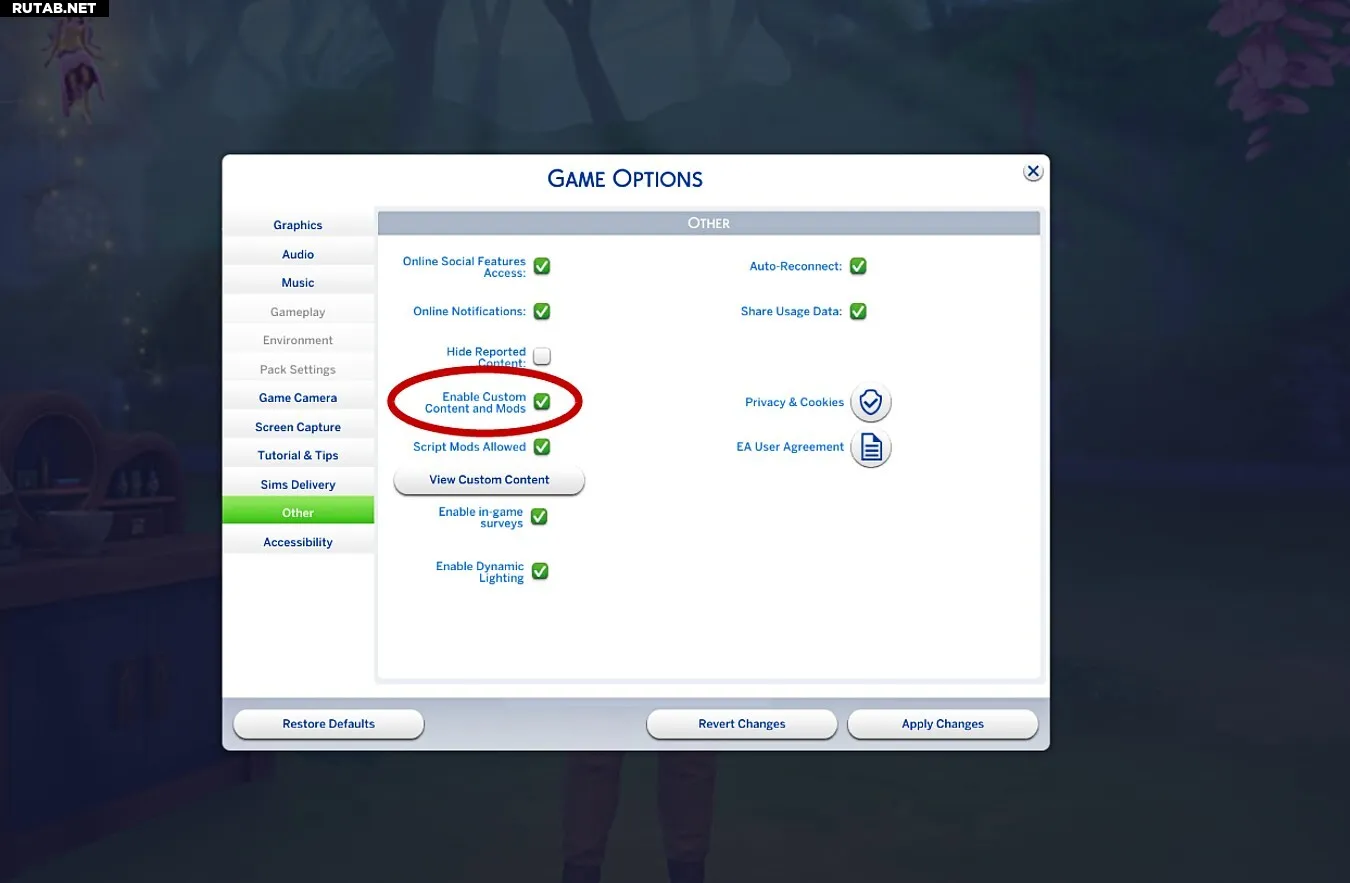
First, test whether any mod is causing the issue by disabling them completely. You can do this in the game settings by going to the `Other` section and unchecking the `Enable Custom Content and Mods` box:

Save your settings, restart the game, and see if the bug is still present. If the bug disappears, then it was likely caused by a mod. Now, you need to find the specific problematic mod. A relatively easy method is the `half-and-half` test: Move half of your mods *out* of your Mods folder (located in Documents > Electronic Arts > The Sims 4), clear the cache (as described above), and load your game again. If you still have the bug, then the problematic mod is in the half you left in the folder. If the bug is gone, the issue is with one of the mods you removed. You can continue narrowing it down by repeating this process with the group that seems to contain the bad mod, or if you have a suspicion, try removing individual mods you think might be the culprit.

Repair Game Installation
You might have core game files that are missing or corrupted, which can sometimes happen, especially if using outdated mods. In such situations, you can use the EA app to check your game installation and replace any essential files that are missing or damaged. Just go to The Sims 4 page in the EA app, click on the `Manage` button (usually to the left of the `Play` button), and select `Repair` from the dropdown menu. The EA app will then scan all your base game and DLC files for any anomalies and fix them. This process *does not* check or repair your mods; it only verifies the official game files.
Manage Your Sim Population (Culling)
There`s a limit to how many Sims The Sims 4 can effectively manage simultaneously. By default, the game limits the total population to 200, although you can disable this cap in the settings. However, regardless of how powerful your computer is, The Sims 4 will eventually slow down significantly if you add too many Sims to your world. Even on a high-end gaming PC, the game tends to get noticeably sluggish when the population exceeds around 750.
The Sims 4 is designed to prevent this slowdown by periodically `culling` (removing) unplayed Sim families from the game world. However, you can protect specific households from being culled by adding them to your list of `Played Households`. If your game has a very large population, the number of Sims could be the source of your problems. Moving non-essential households into the `Unplayed` category will allow the game to remove them if and when needed. This step is generally only necessary for players who have saves with several hundred Sims in their world.
Seek Help from the Community
Lastly, if the troubleshooting steps above don`t resolve your issues, there are two major community resources you can utilize: the official EA forums and Reddit. These have been central hubs for The Sims 4 discussion since launch. Assuming your problem isn`t specific to a highly unusual setup, there`s a very good chance you`ll find that someone else has encountered the same issue in the past and potentially found a solution or workaround.