

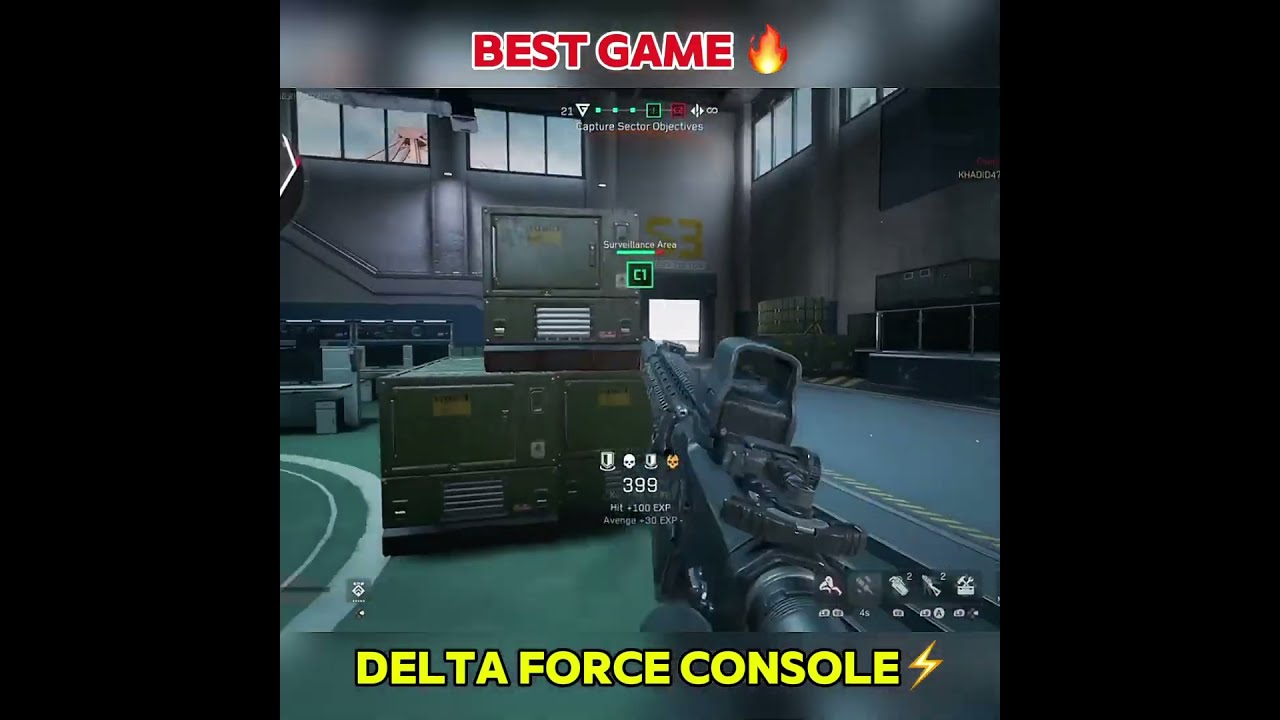
Delta Force, the free-to-play shooter available on PC, mobile, Xbox Series X|S, and PlayStation 5, offers full controller support. However, console players might find the default aiming and movement controls a bit clunky. This comprehensive guide provides recommended settings to enhance your aim, sensitivity, and overall movement when playing Delta Force on console with a controller. Audio and graphics recommendations are also included.
The game supports cross-play, with limitations based on platform, and features a roster of 11 class-based operators.
- Controller settings
- Controller sensitivity
- Controller Deadzone
- Input Sensitivity
- Ground Vehicle Sensitivity
- Aircraft Sensitivity
- Gunner Sensitivity
- Aim Assist Switch
- Controller Controls
- Controller layout and combat sections
- Movement
- Controls And Combat
- Aim
- Vehicle
- Controller sensitivity
- Screen Settings
- General
- Operations
- Warfare
- Minimap
- Language
- Graphics
- Display
- Combat Perspective
- Audio
- Master Volume
- Individual Volume
- Voice
Controller Settings
Delta Force originated on PC and mobile platforms before its console release. If you`re accustomed to other popular shooters like Call of Duty or Battlefield, you might find Delta Force`s console controls somewhat awkward and stiff regarding movement and aiming. While many game settings can remain at their defaults, adjusting controller sensitivity is crucial. These settings are often a matter of personal preference, so you might prefer more or less sensitivity for hip-firing or aiming. However, these recommendations aim to provide a solid foundation for refining your movement and aiming.
It’s also advisable to adjust the sensitivity for ground vehicles and tanks. Try increasing these sensitivity levels to match the vertical and horizontal sensitivities you use for your operator. While this guide focuses on ground vehicles, similar adjustments would likely benefit aircraft controls.

Controller Sensitivity
Controller Deadzone
- Right Stick Center Deadzone – 10
- Right Stick Maximum Input – 80
- Left Stick Center Deadzone – 10
- Left Stick Maximum Input – 80
Input Sensitivity
- Stick Response Curve – Standard
- Sensitivity Preset – Custom
- Hip Fire Horizontal Sensitivity – 450
- Hip Fire Vertical Sensitivity – 300
- Hip Fire Horizontal Outer Deadzone Acceleration – 50
- Hip Fire Vertical Outer Deadzone Acceleration – 50
- Hip Fire Turning Activation Time – 30
- Hip Fire Turn Delay – 0
- ADS Horizontal Sensitivity – 200
- ADS Vertical Sensitivity – 150
- ADS Horizontal Outer Deadzone Acceleration – 20
- ADS Vertical Outer Deadzone Acceleration – 20
- ADS Turning Activation Time – 50
- ADS Turn Delay – 0
- Set Sensitivity Per Zoom – Off (You can turn this on to manually set different zooms for all scope types, but the default setting often works well.)
- Sensitivity Transition Mode – ADS Transition
- Scope Magnification Adapts Automatically – On
- Invert All Vertical Input – Off
- Invert All Infantry Vertical Input – Off
- Invert All Ground Vehicle Driver Vertical Input – Off
- Invert All Aircraft Vertical Input – Off
- Invert All Gunner Vertical Input – Off
- Turret Locked While Vehicle Turning – Off
- Controller Vibration – Off
- Adaptive Triggers (PS5) – Off
Note: For PlayStation 5 users, it`s highly recommended to disable Adaptive Triggers. While they offer immersive feedback, turning them off provides significantly more precise aiming control.
Ground Vehicle Sensitivity
- First-Person Horizontal Sensitivity – 400
- First-Person Vertical Sensitivity – 300
- Third-Person Horizontal Sensitivity – 300
- Third-Person Vertical Sensitivity – 250
- Set Sensitivity Per Zoom – Off
Aircraft Sensitivity
- First-Person Horizontal Sensitivity – 400
- First-Person Vertical Sensitivity – 300
- Third-Person Horizontal Sensitivity – 300
- Third-Person Vertical Sensitivity – 250
- Set Sensitivity Per Zoom – Off
Gunner Sensitivity
- First-Person Horizontal Sensitivity – 400
- First-Person Vertical Sensitivity – 250
- Set Sensitivity Per Zoom – Off
Aim Assist Switch
Ensure Aim Assist is turned On when playing with a controller.

Controller Controls
Controller layout and combat sections
This section is largely a matter of personal preference. You can use these settings to determine whether you prefer using the bottom triggers or the top bumpers for shooting. Additionally, you can swap your crouch and melee buttons to enable quicker crouching, diving, and proning via the right thumbstick.
Movement
- Auto Run / Tactical Sprint – Close or Auto Run
- Run /Tactical Sprint Control – Toggle
- Tactical Sprint Activation – Press While Sprinting
- Slide/ Dive Activation – Press to Slide/ Hold to Dive
The primary adjustment here is the `Auto Run / Tactical Sprint` setting, which depends on your playstyle. Choose `Auto Run` if you prefer to constantly push forward into engagements. Alternatively, select `Close` if you desire more nuanced speed control, where slight thumbstick pressure results in walking, and increased pressure initiates running. This is ideal for stealthier or more tactical movements.
Controls And Combat
Leave these settings at their default values unless you specifically wish to remap various movement controls.
Aim
Leave these settings at their default values unless you specifically wish to remap various aiming controls.
Vehicle
Leave these settings at their default values unless you specifically wish to remap various vehicle controls.
Screen Settings

General
- Show Performance Parameters – On
Operations
- Show Detailed Item Pickup Tips – On
- Close Backpack /Pick up Tab When Being Attacked – On
- Close Backpack / Pick up Tab When Sprinting – Off
Warfare
Minimap
- Rotating Perspective – Off (This is personal preference and can be turned on if preferred)
- Infantry View Distance – 100
- Ground Vehicle View Distance – 150
- Aircraft View Distance – 240
- Minimap Icon Scale – 100%
Language
- Text – English (or your preferred language)
Graphics

Display
- Brightness – Default
- V-Sync – Off
- Performance Mode – Frame Rate
For competitive online multiplayer shooters like Delta Force, turning off V-Sync and prioritizing `Frame Rate` in Performance Mode is highly beneficial, as it typically leads to smoother gameplay and reduced input lag over enhanced visual fidelity.
Combat Perspective
- Default Field of View (FOV) – Set this somewhere around 100 to 120.
Audio

Audio settings are largely a matter of personal preference. Often, the default game audio in Delta Force can be quite loud, making it difficult to hear friends in party chat. A common adjustment is to lower the Master Volume to around 60, though you may adjust it more or less to your liking. Reducing music volume is also recommended to prioritize important in-game audio cues and voice chat. Additionally, the game offers a streamer setting to disable copyrighted music playback; if you are not streaming, you can leave this on to enjoy the game`s music.
Master Volume
- Master Volume – 60
- Audio Output mode – Speakers or Headphones
- HRTF – Default
- Mute When Minimized – On
Individual Volume
- Music Volume – 25
- Sound Effects Volume – 100
- UI Volume – 100
- Voice Volume – 100
- Copyrighted Music Playback – On by default
Voice
- Chat Channel – Squad
- Mic Mode Switch – Choose between Always On, Push to Talk, or Off
- Mic Volume – 100
- Channel – All
- Voice – English (or your preferred language)